After you had an overview of the exporting process, you are ready to prepare your files.
Pay attention to these important notes:
- Place your clips in chronological order: The first camera clip should be the first clip in the timeline
- Split the material from different cameras: each camera should get its timeline
- Check Duplicate Frames: After the grading is done, make sure there are no duplicate frames on the timeline. You can easily do this by going to the View menu and checking the option "Show Duplicate Frames." Resolve will highlight any duplicates so you can easily identify and trim them.
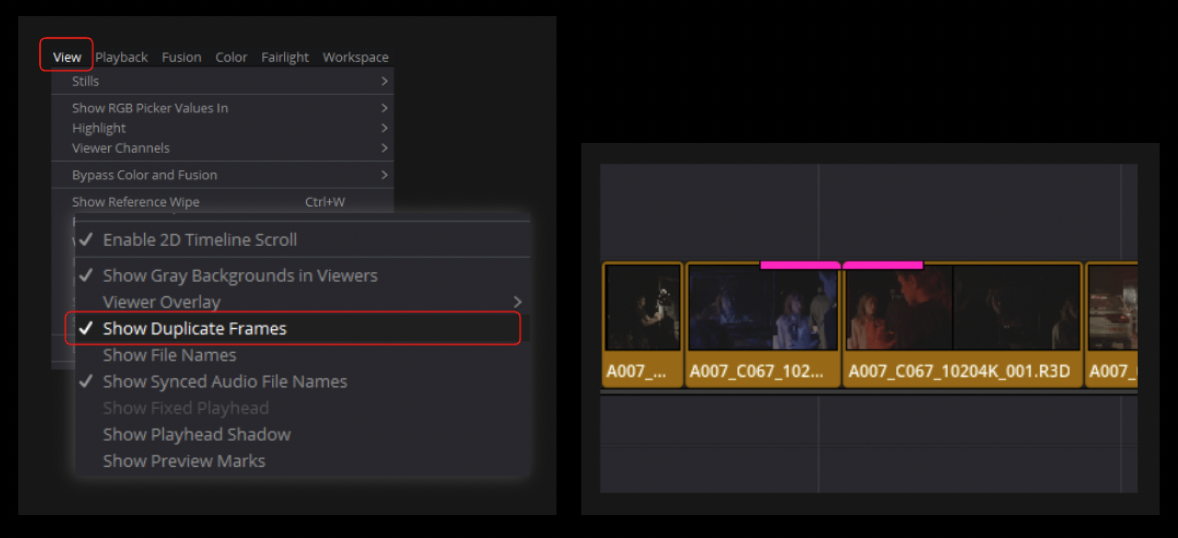
Note: If you are using different parts of the same clip file, resulting in the same clip existing multiple times on the timeline, please be aware that an extra step might be needed in the Renaming process. Please find more details in the following article: Resolve 5: Zipping and Naming your Raw Files ....
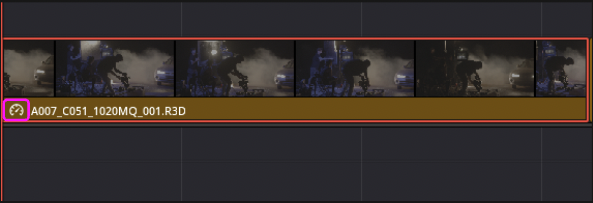
- Re-Timer: If you change a clip's speed, place it in a pre-comp before export. Name the pre-comp the same as the source clip.
A clip with re-timer
The same clip in a Pre-Comp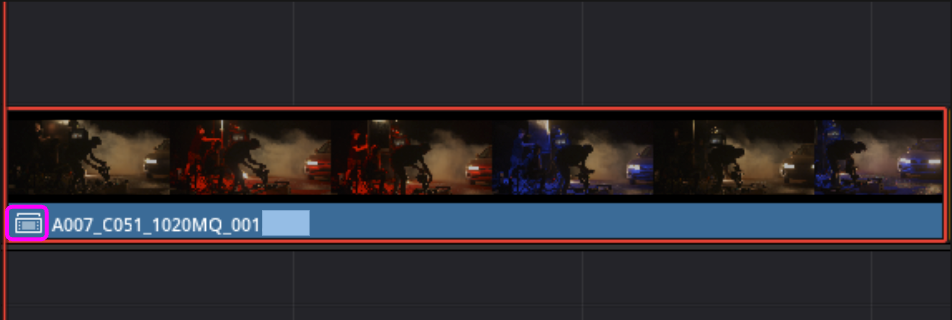
That's it. Your files are ready to export. Click here to see how to export your graded files.