If you have missed one of the previous articles about Exporting your files, make sure to check them:
Note: if you shot RAW and are not sending LOG files, skip to this page.
Exporting LOG
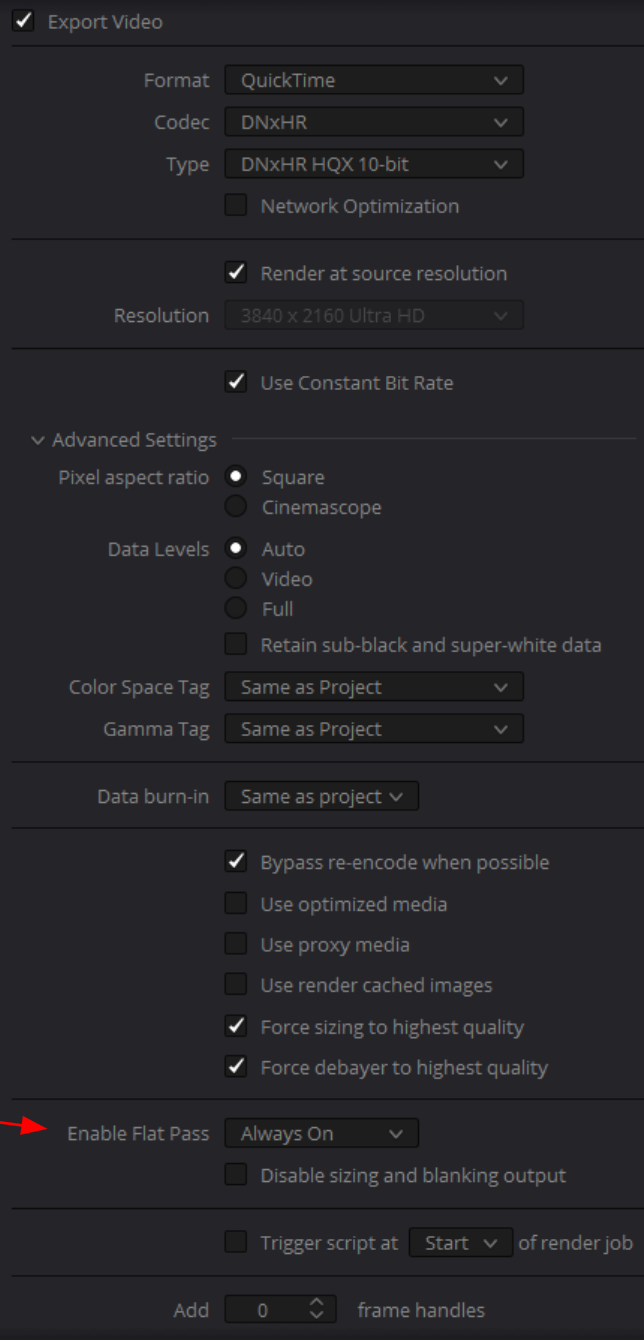
Go to Deliver Tab > Video Properties
Change “Enable flat Pass” to “Always On”
Naming
Change the subfolder name to “Ungraded”, and add the new job to the render queue and render.
End Result
Your “Ungraded” files should look like this:
Results side by side
Here’s how both folders should look like if you rendered ungraded clips
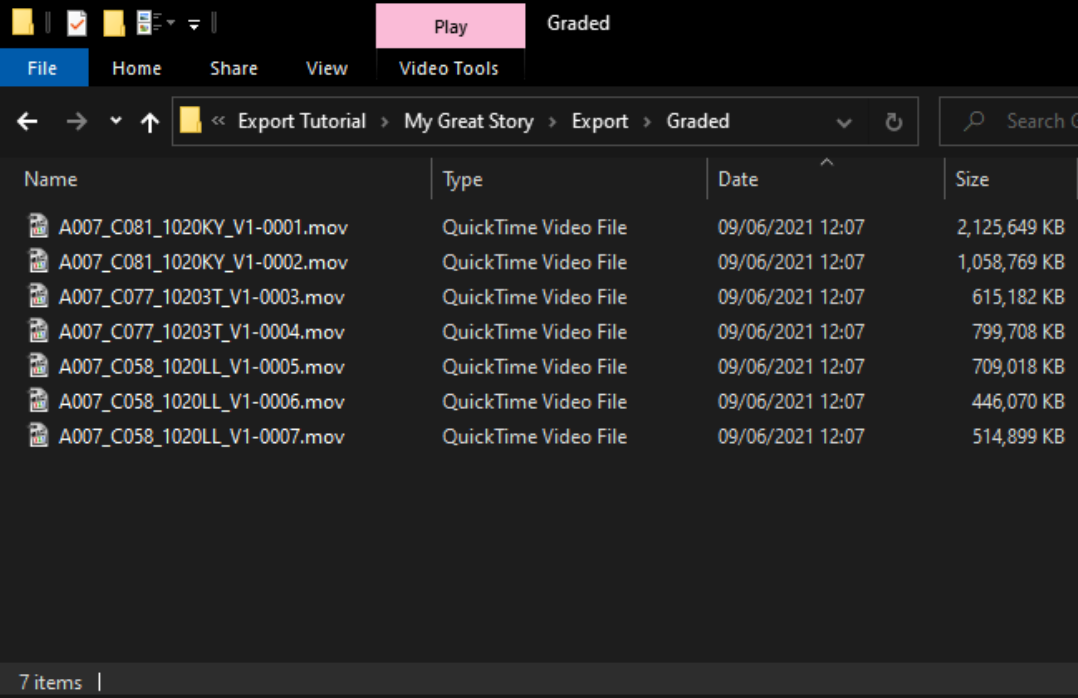
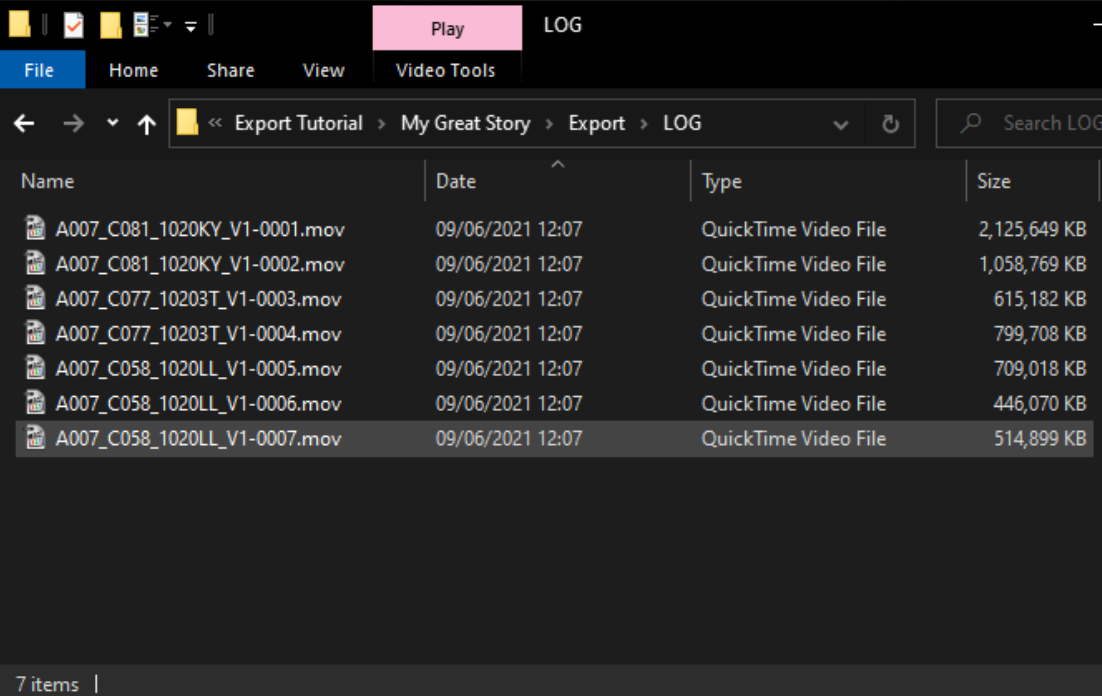
You are ready to upload your folders. Please check here for more details.